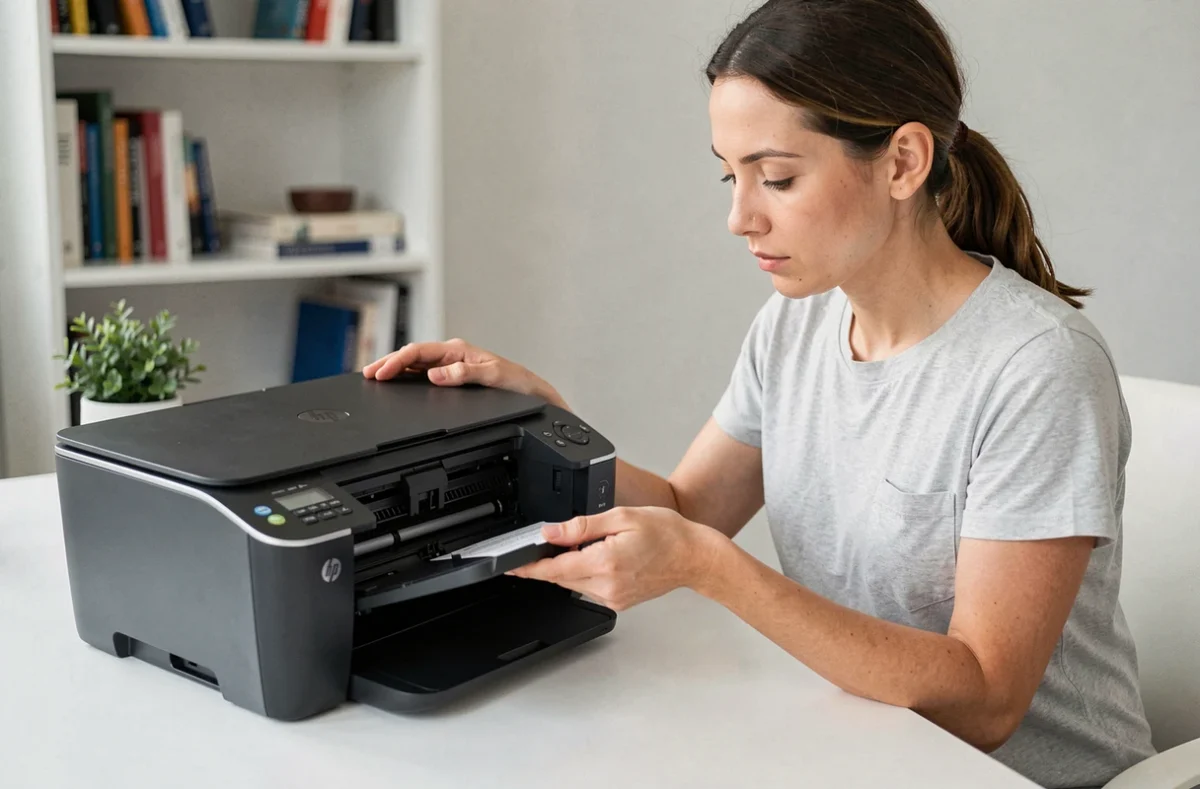
Missing lines in a photo, colors that look green even though the file shows a clear blue: on the HP Envy 5030, these issues often point to the printheads. On this model, the printhead is built directly into the ink cartridge. Replacing a cartridge therefore also replaces the corresponding printhead, which changes the troubleshooting approach compared with printers that have removable printheads.
Blurry documents: clogged nozzles or another cause?
Before running a cleaning cycle, print a diagnostic page. On the HP Envy 5030, go to the control panel and select the print quality report. This page prints color bars and line patterns that reveal whether any nozzles are clogged.
Have you noticed that the diagnostic page prints perfectly clearly, but your documents are still blurry? This specific case indicates that the problem is not caused by the nozzles. You’ll need to look elsewhere.
- The paper type selected in the settings doesn’t match the paper loaded (photo paper selected for plain paper, for example), which changes the amount of ink applied and produces a smudged or faded result.
- Print quality is set to “draft” when the document requires “normal” or “best” mode: fine details disappear.
- The source file itself is low resolution, often an image taken from the web, enlarged and printed. The printer faithfully reproduces the file’s blur.
Checking these three points before touching the cartridges helps avoid wasting ink on unnecessary cleaning cycles. If the diagnostic page shows broken lines or missing colors, cleaning the printheads is worthwhile.
For a complete guide to cleaning HP Envy 5030 printheads, every step helps preserve your cartridges.
HP Envy 5030 automatic cleaning: run the cycle without wasting ink
Automatic cleaning forces ink through the nozzles to clear dried residue. You can start the process from the printer’s control panel or from the HP Smart software installed on your computer.
From the control panel
Tap the gear icon (Settings), then go to “Tools” and select “Clean Printhead”. The printer starts a cycle that takes about one minute, then prints a test page.
Each cleaning cycle uses a significant amount of ink. HP recommends stopping after two or three unsuccessful attempts. Running five or six cycles in a row empties the cartridges without improving the results.
From HP Smart
Open the app, select your printer, then go to the “Print Quality” section. Start the cleaning cycle and wait for the test page. Compare it with the previous one: if the color bars are complete, the problem is solved.
If the defects persist after three cycles, the issue is probably with the contacts or the cartridge itself. Automatic cleaning can’t fix an oxidized electrical contact or a faulty cartridge.
Dirty electrical contacts: the invisible problem
A completely missing color or a cartridge error message on the printer’s screen points to the electrical contacts rather than the nozzles. The contacts are the small copper-colored strips on the cartridge and their corresponding contacts inside the carriage.
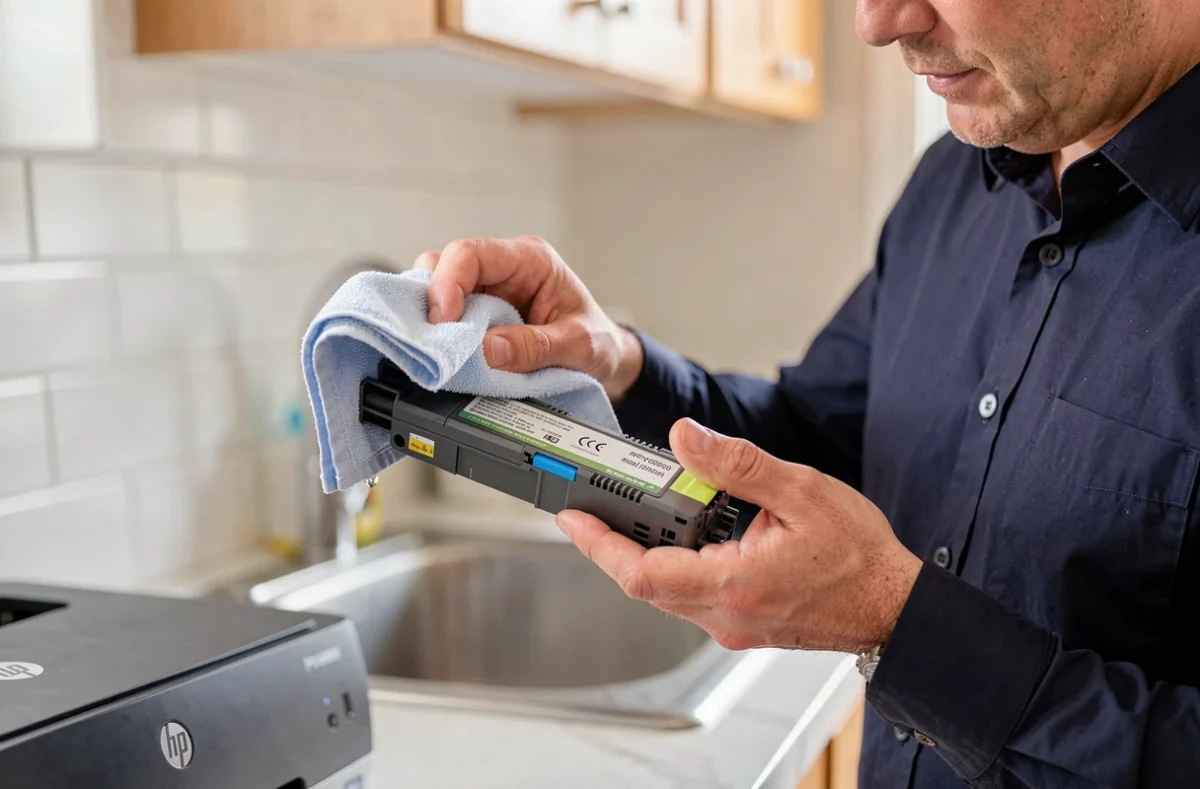
To clean them, remove the affected cartridge. Take a lint-free cloth (such as a microfiber cloth) and dampen it slightly with distilled water. Gently wipe the gold contacts on the cartridge, then the corresponding contacts inside the printer carriage.
- Never touch the nozzles (where the ink comes out): rubbing them can permanently damage them.
- Don’t use tap water: limescale leaves conductive deposits that make the problem worse.
- Avoid alcohol and household cleaners: they can damage components and dissolve protective coatings.
Let the contacts air-dry for a few minutes before reinserting the cartridge. Then run a test print.
Preventing HP printhead clogs
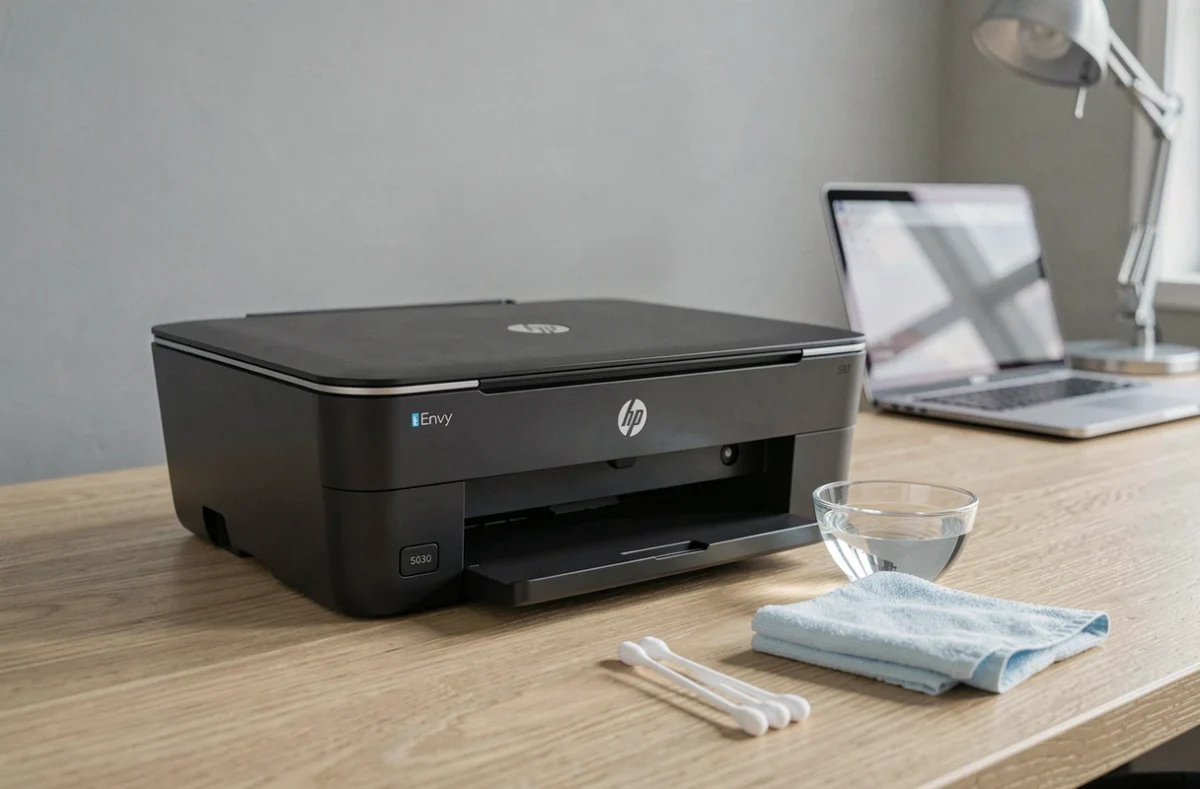
Ink drying in the nozzles is the leading cause of clogs. HP recommends printing at least one page every one to two weeks to keep the ink flowing and prevent residue from hardening.
Scheduling an automatic cleaning cycle every week, as some guides suggest, is counterproductive. Printing regularly protects the nozzles better than a preventive cleaning cycle and uses only a fraction of the ink consumed by a forced cleaning.
If the printer sits unused for several weeks, the nozzles may dry out to the point where automatic cleaning is no longer enough. In that case, because the printhead is built into the cartridge on the HP Envy 5030, replacing the cartridge also replaces the printhead. This is the last resort when several cleaning cycles and cleaning the contacts haven’t made a difference.
A printer that prints one page a week, even a simple black text document, keeps its nozzles working much longer than one left in a cupboard between large photo-printing jobs.